Back to FAQ
Setup Guide
Google Sheets Instructions
Import contacts from Google Sheets into Quick Send for easy bulk operations. Follow these simple steps to get started.
1
Make a Copy of the Template
Open the Quick Send Google Sheets template and make a copy to your own Google Drive.
Open Google Sheets Template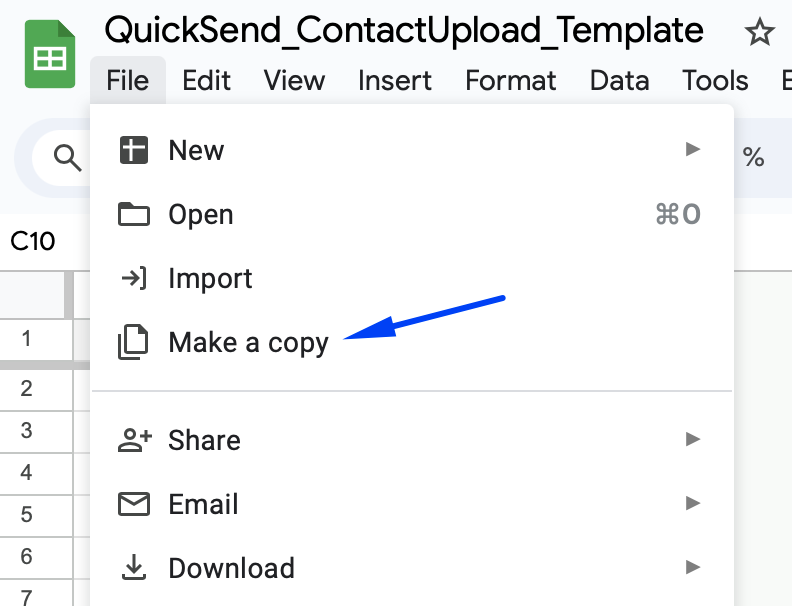
- Open the QuickSend_ContactUpload_Template
- Go to File → Make a copy
- Save the copy to your Google Drive
2
Add Your Contact Data
Fill in the spreadsheet with your contacts. Keep the column headers exactly as they are.
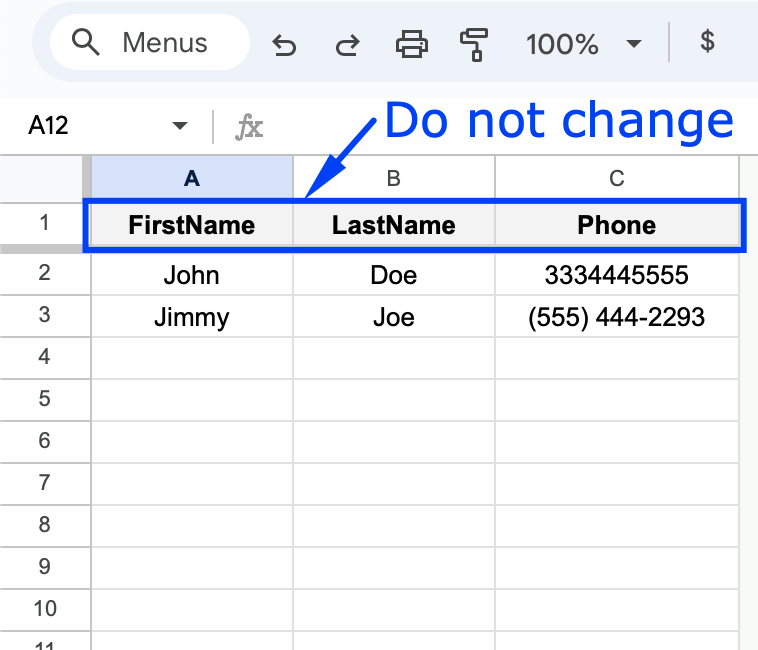
- Column A: FirstName
- Column B: LastName
- Column C: Phone number
- Do not change the column headers in row 1
- Add your contacts starting from row 2
- Recommended maximum of 50 contacts per sheet
Sending to large batches of unknown numbers can trigger carrier spam filters and get your messages blocked. Keeping lists small (50 or fewer) and personalized helps your texts actually get delivered.
Learn how to avoid spam filters3
Share Your Sheet
Share your Google Sheet so Quick Send can access it. Set permissions to "Anyone with the link."
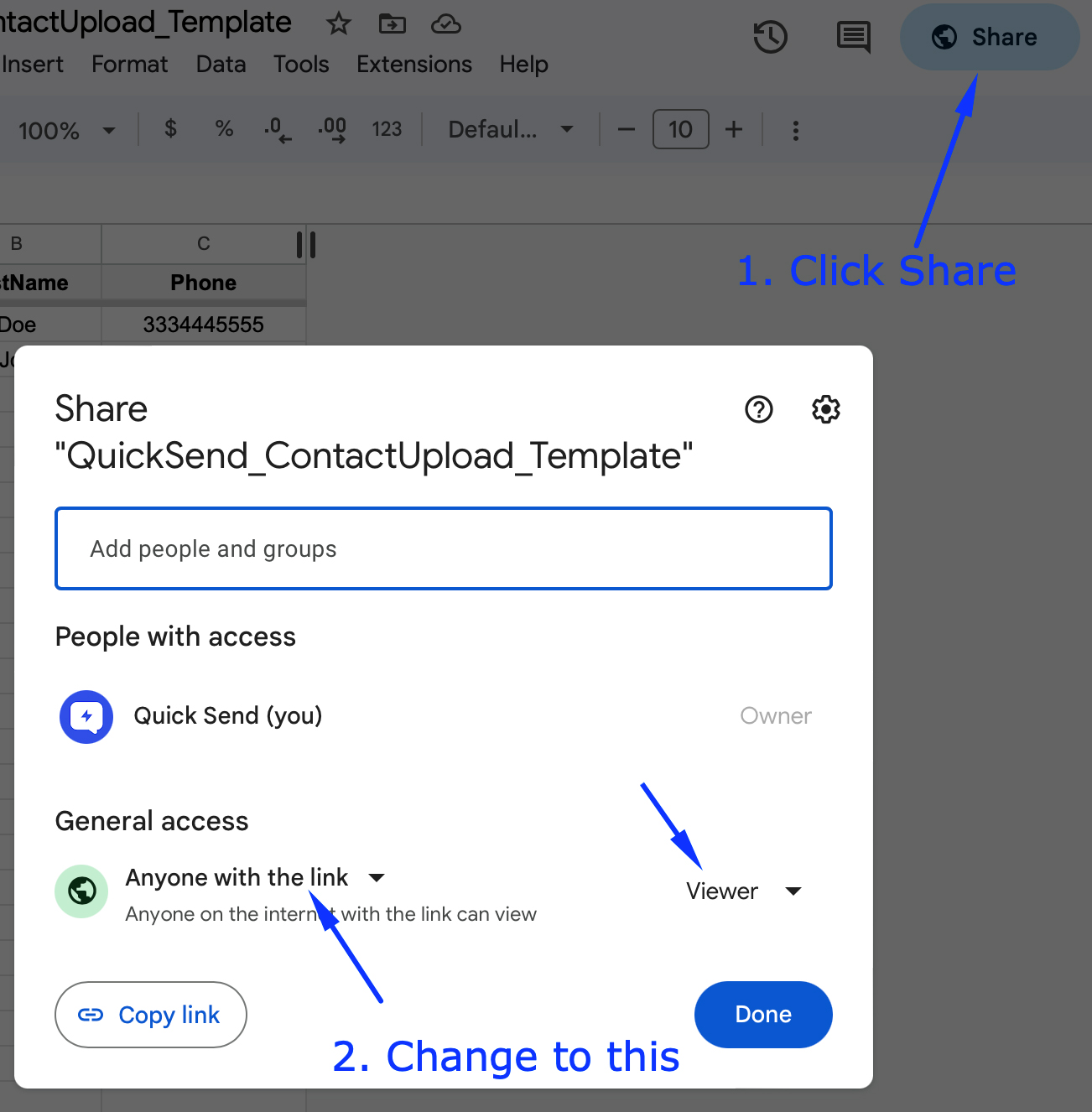
- Click the "Share" button in the top right
- Change "General access" to "Anyone with the link"
- Set permission to "Viewer"
- Click "Done"
- Important: Change this back to "Restricted" after you upload in Quick Send
4
Copy the Sheet URL
Copy the URL or Sheet ID of your Google Sheet and paste it into Quick Send.
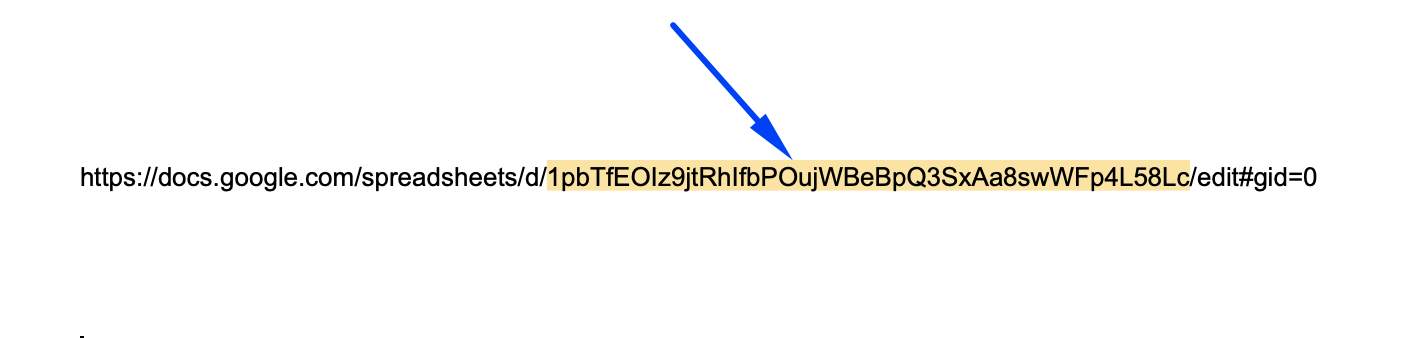
- Copy the full URL or Sheet ID from your browser's address bar
- Open Quick Send on your iPhone
- Go to Add Contacts → Google Sheets
- Paste the URL and import your contacts
Tips for best results
- • Format phone numbers consistently (e.g., 3334445555 or (555) 444-2293)
- • Keep column headers exactly as shown — do not rename them
- • Remove any empty rows in your spreadsheet
- • Test with a small batch first before sending to your full list